
To connect Apify to Claude, add Apify’s hosted MCP server as a connector. In Claude, open Customize > Connectors, choose Add custom connector, paste https://mcp.apify.com, then click Connect and allow access in your Apify account. Codex takes the same address: add it under Settings > MCP servers in the ChatGPT desktop app, or run codex mcp add apify --url https://mcp.apify.com in a terminal.
Once that’s done, Claude or Codex can search Apify’s store of ready-made scrapers, run the right one and read what comes back, so one plain-English request can end as a finished table.
You need an Apify account first. The free plan costs nothing, doesn’t ask for a card and includes $5 of usage every month. Create your free Apify account here.
What does Apify add to Claude and Codex?
Apify is a marketplace of scrapers and automations that it calls Actors. Each Actor is a small program that runs on Apify’s servers and does one job: pulling businesses from Google Maps along with their ratings, crawling every page of a website, collecting the posts on an Instagram account. The homepage counted more than 75,000 of them when I wrote this. Apify builds some of them, and independent developers publish the rest.
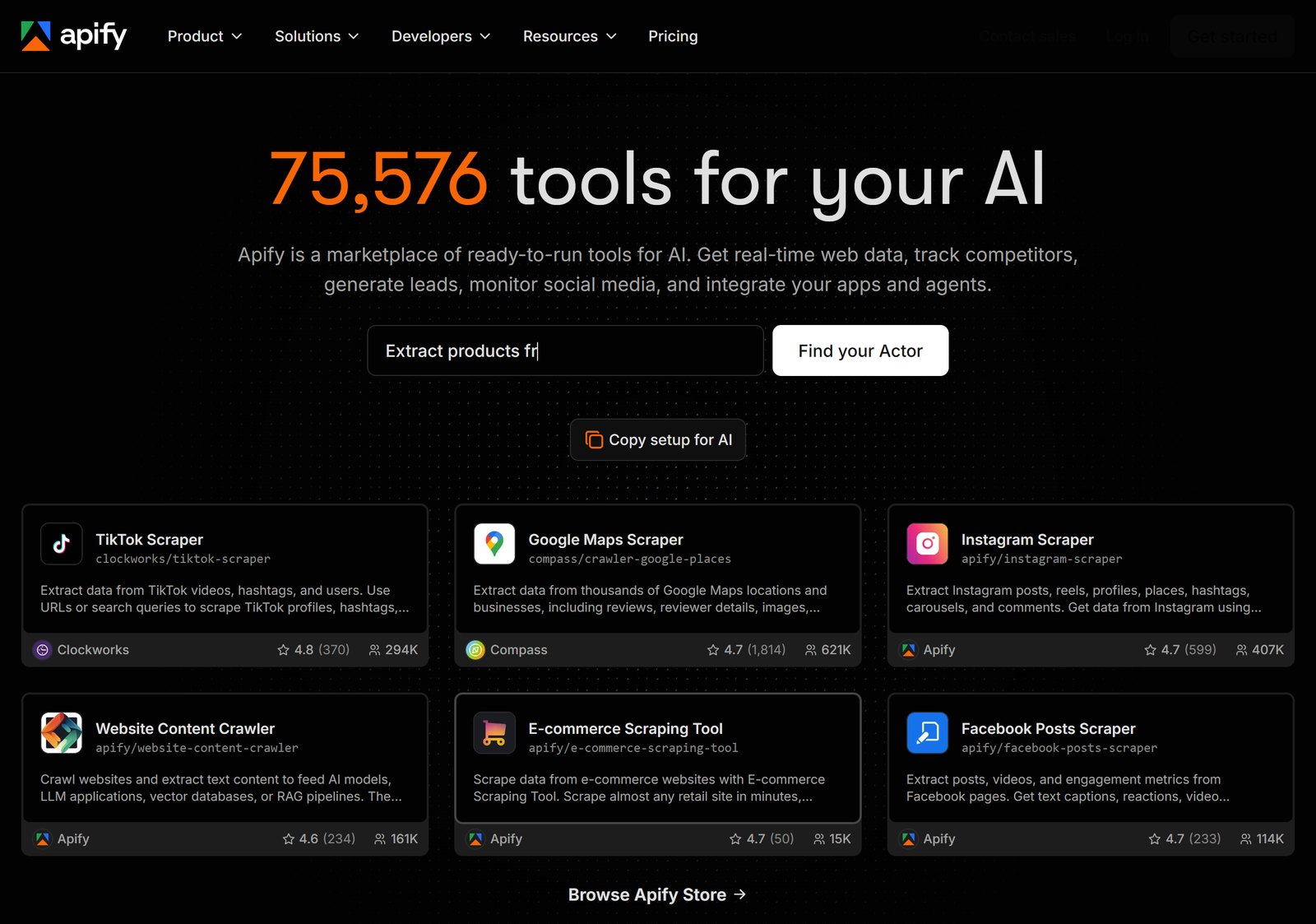
Without the connection, Claude answers from what it already knows or from a quick web search. Ask it for the decision-makers at four Dubai clinics and it may give you names it remembers, with nothing to show that those people still hold those jobs. With Apify connected, it gets real tools: one to search the store, one to read an Actor’s inputs and pricing, one to run it, and one to fetch the results when the run is over. The first time it reaches for them, Claude asks for your permission, and you’ll see names like search-actors and call-actor in that request.
What sits between the two is the Apify MCP server. MCP, the Model Context Protocol, is how Claude and Codex talk to outside services, and Apify runs its own server for it. Apify’s documentation recommends the hosted version over running one yourself: it updates itself, needs nothing installed on your computer, and signs you in through the browser instead of asking for an API token.
Start with a free Apify account
Open Apify and click Get started. You can sign up with Google, GitHub or an email address, and none of the steps asks for a credit card.
The pricing page lists the free plan as $0 a month with $5 of usage to spend on Store Actors or your own, and compute units at $0.20 each. One answer in Apify’s pricing FAQ matters more than the rest if this is your first try: on the free plan, going over your usage doesn’t produce a bill. Apify blocks access until your next monthly cycle begins. Credit you don’t use doesn’t carry over either.
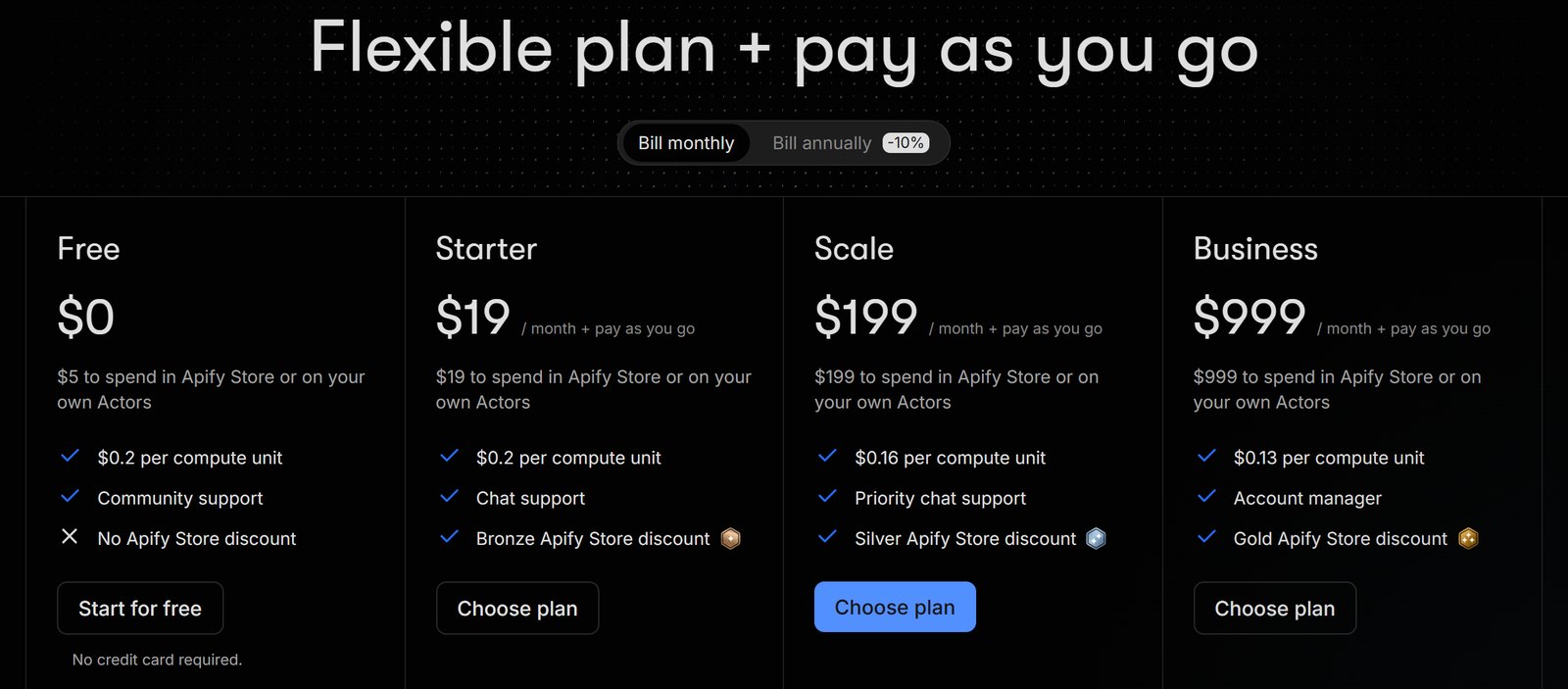
Each Actor sets its own price. Some charge per result, others by compute time, and the Actor’s page tells you which. Once Apify is connected you won’t need to look that up yourself, because Claude and Codex read an Actor’s details, pricing included, before they run it. Near the end I show how to ask for the prices before anything runs.
How do you connect Apify to Claude?
Claude on the web and in the desktop app
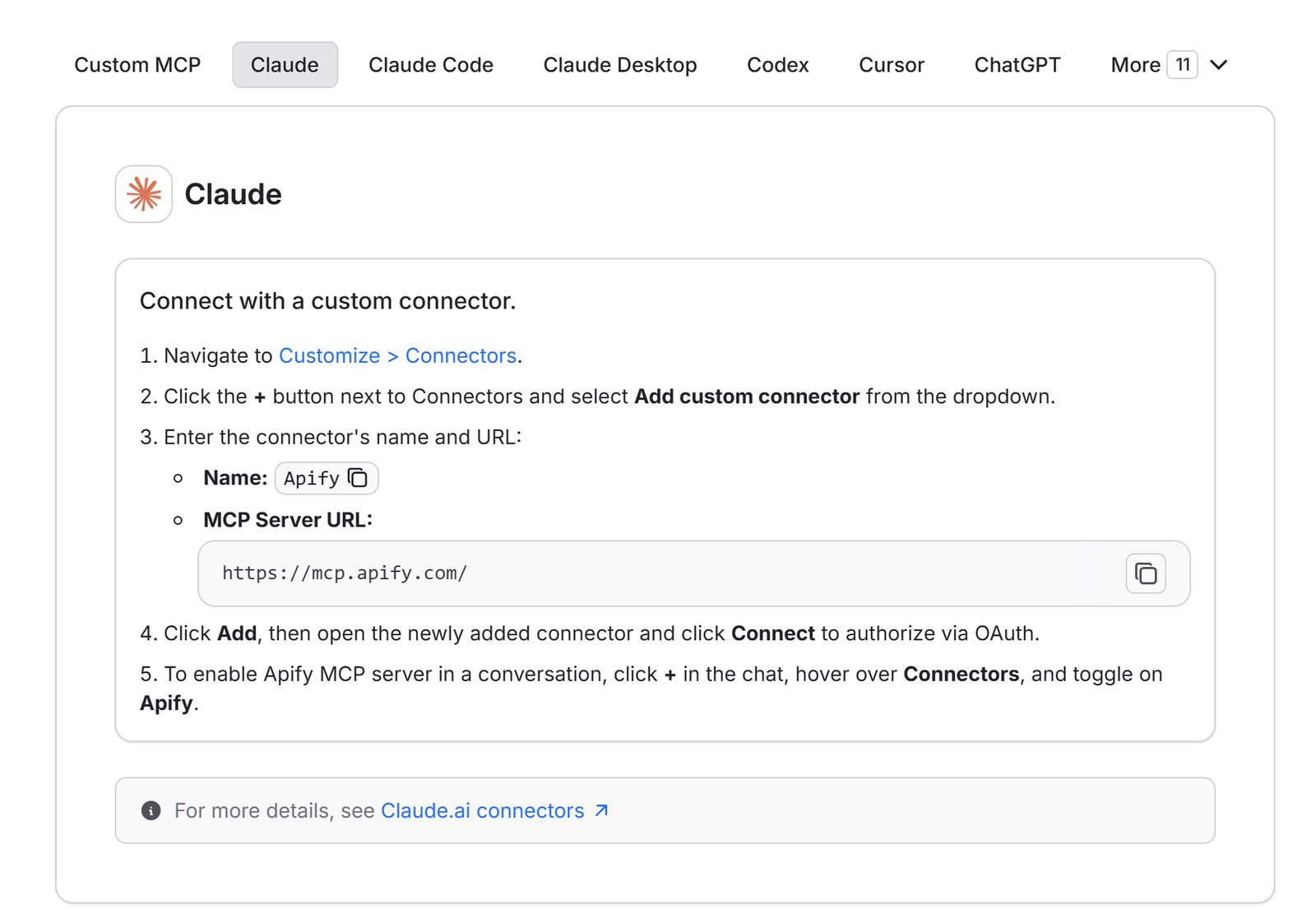
These are the steps Apify gives for Claude on its own setup page. They’re identical in the browser and in the desktop app:
- Open Customize in the sidebar, then Connectors.
- Click the + next to Connectors and pick Add custom connector.
- Name it Apify and paste this server address:
https://mcp.apify.com- Click Add, open the new connector and click Connect. A browser tab opens on Apify, where you sign in and click Allow access.
- In a new chat, click the + under the message box, go to Connectors and switch Apify on.
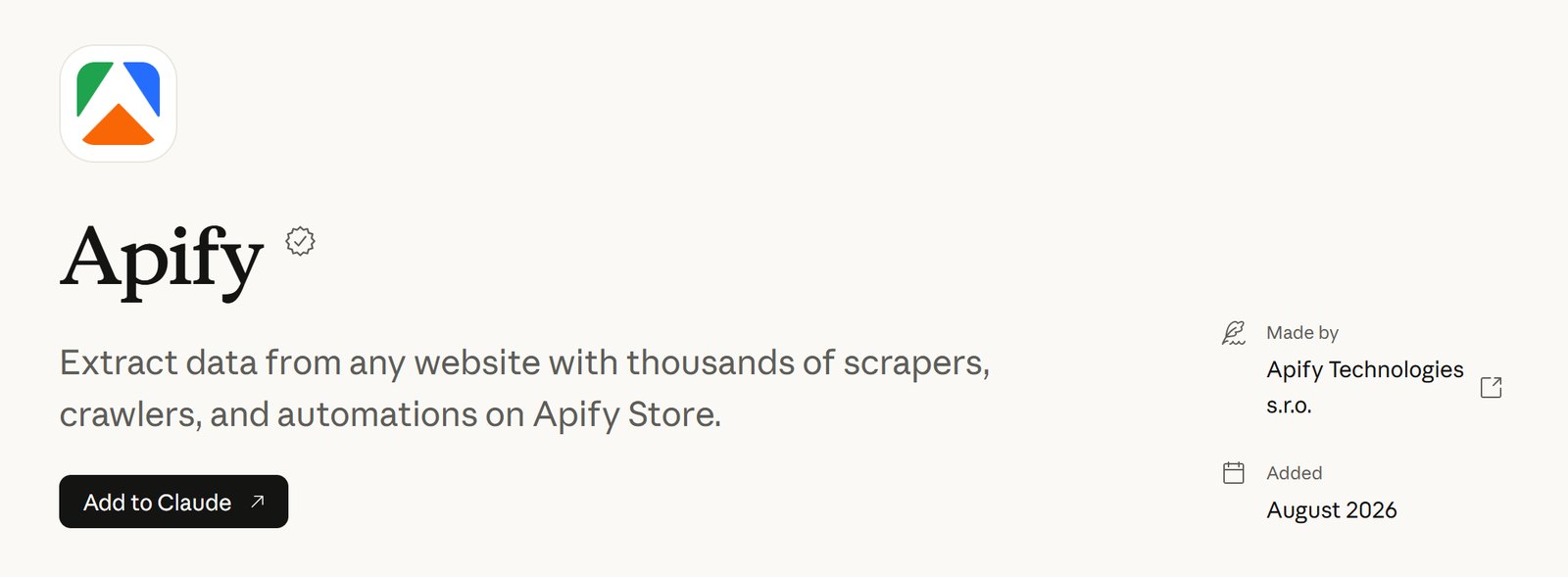
There’s one catch on Claude’s free plan: it allows a single custom connector. If yours is already in use, go through the directory instead. The Apify Claude connector is listed in Claude’s connector directory with the verified badge and Apify Technologies as the developer. Click the + next to Connectors, choose Browse connectors, search for Apify and click Connect. If the directory install gives you trouble, Apify’s docs send you back to the URL method above.
Connect Apify to Claude Code
In a terminal, this one command adds the server for every project on your machine:
claude mcp add --transport http --scope user apify https://mcp.apify.comThen open Claude Code and type:
/mcpPick apify, choose Authenticate and finish signing in in your browser. Keep --scope user in the command. Without it, the server is added to the current folder only, and it seems to disappear as soon as you open another project.
How do you connect Apify to Codex?
The ChatGPT desktop app
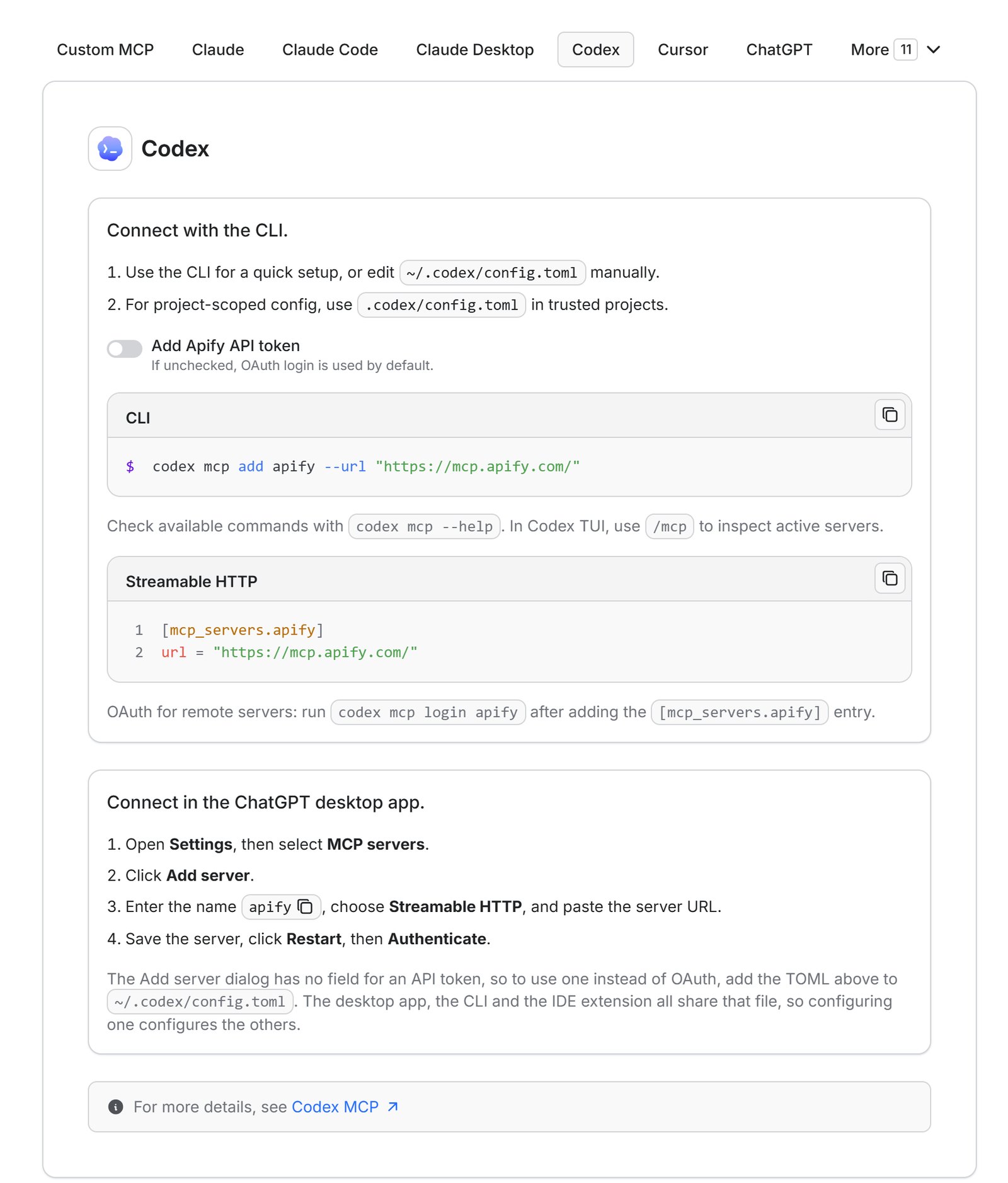
Codex runs inside the ChatGPT desktop app, and you add Apify from its settings:
- Open Settings, then MCP servers.
- Click Add server.
- Enter apify as the name, choose Streamable HTTP and paste the same server address you used for Claude.
- Save, click Restart, then Authenticate, and finish signing in in the browser.
Codex CLI
codex mcp add apify --url https://mcp.apify.com
codex mcp login apify
The first command registers the server and the second opens the browser so you can sign in. Inside Codex, /mcp lists the connected servers, so you can check that apify is one of them. You only do this once. According to OpenAI’s documentation, the desktop app, the CLI and the IDE extension share the same MCP configuration.
Apify also publishes a Codex plugin that adds the same server plus a few ready-made skills for scraping and for building Actors. On the Plugins screen, open the menu next to + and choose Add marketplace, enter the source below, then install Apify from the Personal tab:
apify/apify-codex-pluginYou don’t need the plugin for the prompt that follows. It becomes useful once you start building Actors of your own.
The lead generation prompt from my reel
With Apify switched on in a new chat, paste this exactly as it is. It works the same way in Claude and in Codex. It asks for four established clinics or medical centers in Dubai, each with its website, its LinkedIn page, one senior decision-maker with their current role and profile, any business email that’s published, the address, and a short summary of what the clinic does. If you haven’t set up your account yet, start on Apify’s free plan first.
I need a quick market research list of 4 established clinics or medical centers operating in Dubai, UAE.

Use Apify as the main research tool and gather the following information for each clinic or medical center:

* Clinic or medical center name
* Official website
* LinkedIn company page
* A relevant senior decision-maker such as the Founder, CEO, Managing Director, Medical Director, Clinic Manager, Marketing Director, or another appropriate executive
* Decision-maker's current role
* Their LinkedIn profile
* Any publicly listed business or company email
* Dubai office/location
* A short summary of the clinic’s main services or medical specialties

Focus on clinics and medical centers that have a clear online presence and appear to be currently active and established.

Use only publicly available professional information. Do not include personal phone numbers, private emails, or other non-business contact details.

Cross-check the details where possible and present the final output as a simple table containing exactly 4 clinics or medical centers.
Each part of it has a job:
- The line that names Apify as the main research tool is what makes the model run Actors instead of writing the table from memory. Remove it and you may get names it remembers, with no guarantee those people still work there.
- The list of fields becomes the columns of the table. It also tells the model where to look: the clinic’s own site for the email and the services, LinkedIn for people and their roles.
- The words “established” and “clear online presence” filter out closed clinics and abandoned listings. A list full of places that never reply is worse than a short one.
- The privacy line keeps the search to public, professional information and rules out personal phone numbers and private emails. What you end up with is a list of business contacts, not a file on individuals.
- The last line asks for the details to be cross-checked where possible, fixes the count at four and asks for a plain table you can paste anywhere.
I keep it at four on purpose. A small first run finishes sooner, uses less of your credit, and shows you how good the results are before you ask for forty.
How to adapt the prompt, and what a run looks like
The example looks for clinics in Dubai, but the structure works for any market. Change four things: the type of business (real estate agencies, restaurants, law firms), the city, the number once you trust the output, and the job titles that count as decision-makers in that industry. Leave the Apify line and the privacy line as they are.
Two optional lines are worth adding at the end:
If a field cannot be verified, write "Not found" instead of guessing.
Present the final table in Arabic.
The first stops the model from filling a gap with something that only sounds right. The second matters if the table is going to an Arabic-speaking team; put in whatever language you need.
During the run, Claude or Codex asks before it uses Apify’s tools. Approve them, and it will search the store, read the inputs of the Actors it chooses, run them and put together what they return. Give it a minute. The tool that starts a run waits 30 seconds by default before it reports the run’s status, and the results of longer runs are read once they finish. If a request stalls because it’s too big, Apify’s own docs suggest making it smaller or splitting it across several prompts.
Every run draws on your Apify credit, on top of whatever you use in Claude or Codex. To see what it will cost before anything runs, send this first, and follow with the full prompt once you’ve seen the prices:
Use Apify to find the best Actors for this task. Show me each one's input requirements and pricing model. Do not run any Actor yet.Before you contact anyone on the list, check it by hand. Open each LinkedIn profile to confirm the person still has that role, and open the clinic’s website to confirm the email. The Actors collect what’s published, and what’s published can be out of date.
Questions people ask
Is Apify free to use with Claude?
Up to a point. The free plan includes $5 of usage a month with no card on file, and when that runs out, Apify pauses your access until the next cycle instead of charging you. Start small, like the four-clinic prompt, and look at what a run used before you decide whether you need a paid plan.
Do I need a paid Claude plan to use the Apify connector?
No. Custom connectors work on every Claude plan, including Free, but the free plan is limited to one custom connector. If that slot is taken, add Apify from the connector directory.
Why can’t Claude find an Actor I can see in the Apify Store?
The Apify MCP server leaves out two kinds of Actors on purpose: rental Actors, which are paid for by subscription, and full-permission Actors, which Apify wants a person to approve rather than a model. The rest of the store is available.
Does the Apify connector work on my phone?
Claude’s connectors work in its mobile apps, but adding a custom connector from a phone is still in beta, according to Claude’s help center. Add Apify once from the browser or the desktop app and it will be there when you open Claude on your phone.